How To Restart or Reinstall an Exercise Environment
Abstract
This article will guide you through how to restart or reinstall an exercise environment.
Virginia Cyber Range users occasionally encounter technical problems that make interacting with their exercise environments difficult. Sometimes these problems exist within your web browser, but other times the issue is with the virtual machine (VM) or environment on our side. There are several ways to troubleshoot the issue and regain control of your exercise environment quickly, and each has its own unique impact on your environment(s) and the time it takes to resolve. The methods for troubleshooting exercise environments in the Cyber Range Exercise Area are listed below, from the quickest and least drastic to the lengthiest and most drastic.
Tip
If you're having problems accessing an exercise environment, you can try the first two steps below. In addition to that, we recommend reviewing our article that includes a troubleshooting guide on Browser Troubleshooting that addresses some of the client-side settings that can prevent you from logging into an exercise environment.
Before restarting, wiping, and reinstalling, please try the following troubleshooting methods:
-
Web Tab Reload (10 sec): Reloading the browser tab you are using to access the exercise environment is the easiest and quickest troubleshooting method and is the first step you should take if you are experiencing issues with your exercise environment login session. For example, if you encounter a black screen when booting up an exercise environment, please try reloading your browser tab ( Ctrl+Shift+R or F5 ), as this usually resolves the issue without losing your open work.
-
Close Web Tab and Rejoin (10 sec): If reloading an exercise environment web tab does not work, your exercise environment session token may have expired. In some cases, you may need to close the VM tab, and re-join using the Join button (indicated with a play icon) in the Cyber Range user interface. With this close and re-join option, you usually retain all your work and open files.
-
VM/OS Reboot (1-2 min): Rebooting an exercise environment from within the operating system itself may be one of the quickest and simplest troubleshooting methods you can perform if you are encountering issues with a single environment. You can do this from either the user desktop run menu or via the terminal. Typically, rebooting your exercise environment will take about 30-60 seconds. From the Linux terminal, type the
sudo rebootcommand, or on Windows, press Win+R (or Ctrl+Esc+R ) and typeshutdown -f -r -t 0to reboot an exercise environment. This type of reboot closes most open files before rebooting and is considered graceful as it is less likely to corrupt databases or filesystems than a restart (below).
If the actions listed above do not resolve the issue while troubleshooting your environment, then the options listed below, which are performed from the Cyber Range user interface, might be more effective in helping regain control of a user's exercise environment:
-
User Environment Soft Restart (2-4 min): Restarting (or pressing stop and start in the user interface) is like virtually pressing the "powering off and on" button for a student’s exercise environment and is done using the Cyber Range web interface. This is similar to powering down and back on any regular computer device when the device is locked up or too sluggish to use. When the machine boots up again after being power cycled, any previously saved documents and work are still accessible to you, and previous work is preserved. This solution is recommended when applications freeze, the keyboard/mouse becomes “glitchy”, or your exercise environment becomes too slow to interact with. For more information, please visit the section titled How To Perform an Exercise Environment Soft Restart.
-
User Environment Wipe and Reinstall (5-40 min): Reinstalling an exercise environment is different from restarting an exercise environment (above). When an exercise environment is reinstalled in the Virginia Cyber Range, the VM operating system is deleted and reloaded from scratch. This means all data stored in the exercise environment is lost. Reinstalling is effective when exercise environments have become damaged beyond repair, the student has locked themselves out of the environment due to firewall or password changes, or the environment no longer boots properly. This option should only be used as a last resort because it can take up to 40 minutes for the exercise environment to be reinstalled, and all of the students’ work on the environment will be lost. For more information, please visit the section titled How To Reinstall an Exercise Environment.
How To Perform a VM/OS Reboot
Another troubleshooting method you can perform is a VM/OS Reboot from within the operating system using the terminal or the run prompt. Below are examples of rebooting on both Linux and Windows VMs.
How To Perform a Linux VM Reboot
-
First, please open a terminal in the virtual machine you wish to perform a reboot on. You should then type
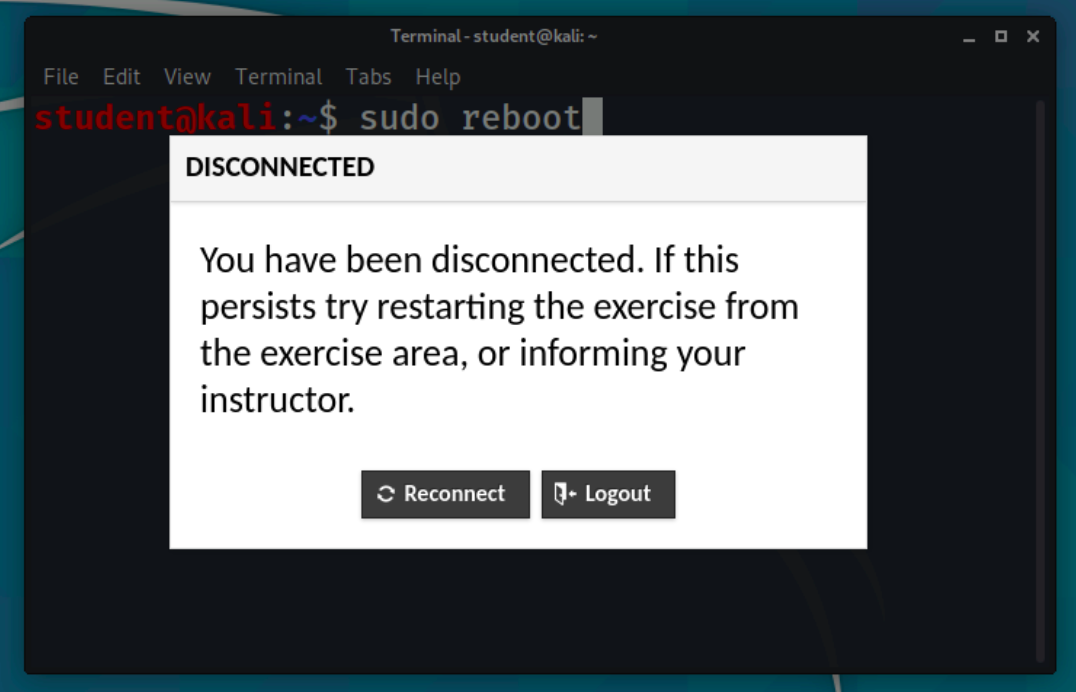
sudo rebootand press Enter on the keyboard.
-
Next, you will receive a notification that you have been disconnected from the virtual machine. This is expected when rebooting from the terminal. Please wait a few moments and then click Reconnect.
-
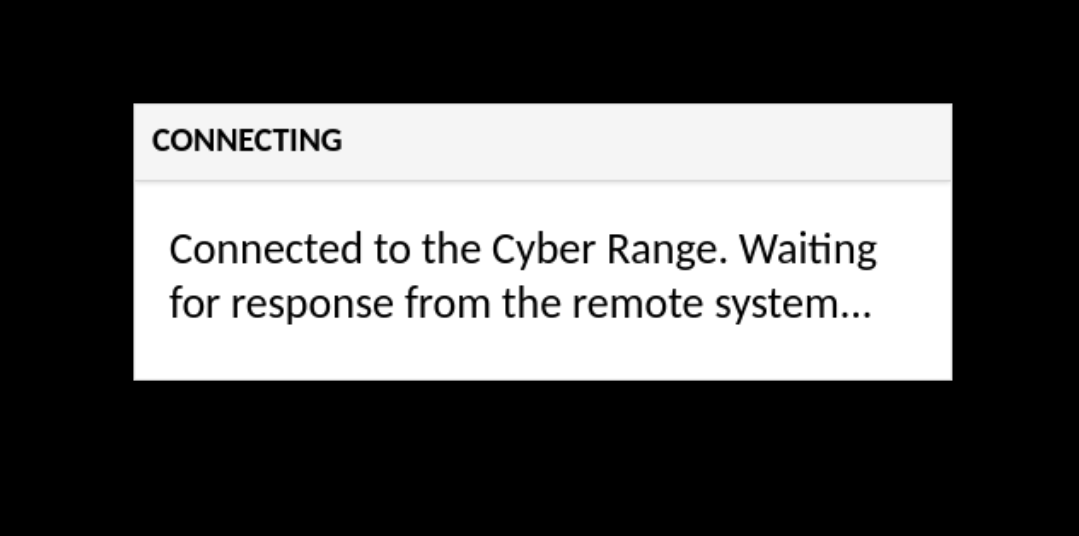
Once you have clicked Reconnect, you will encounter a black screen with a message notifying you that your browser is attempting to connect to the remote system. Please wait for the connection to be established. This could take around 30-60 seconds and will automatically place you back in the virtual machine when finished.
-
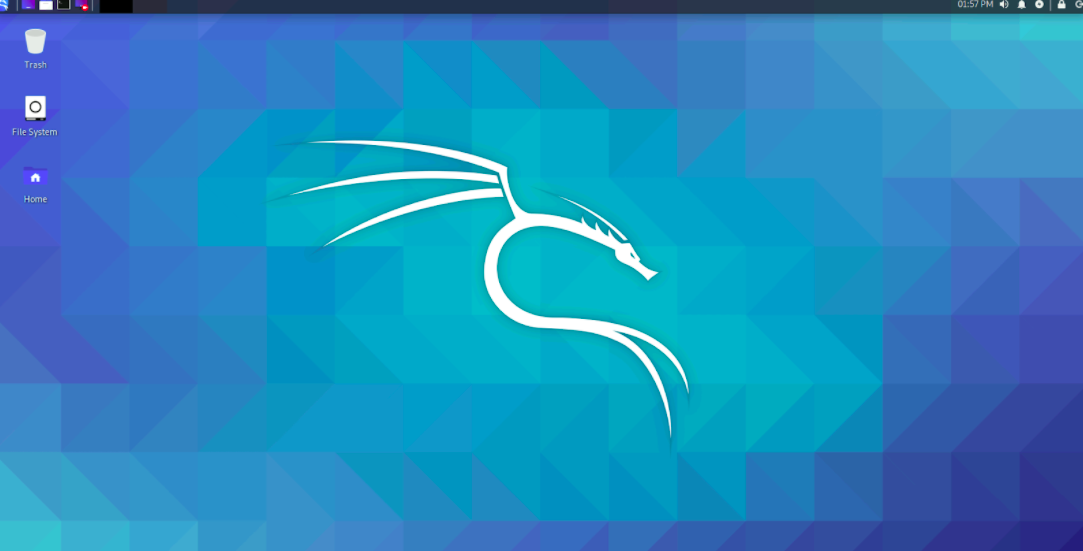
After your virtual machine has established a connection, you will be placed back into your rebooted virtual machine.
How To Perform a Windows VM Reboot
-
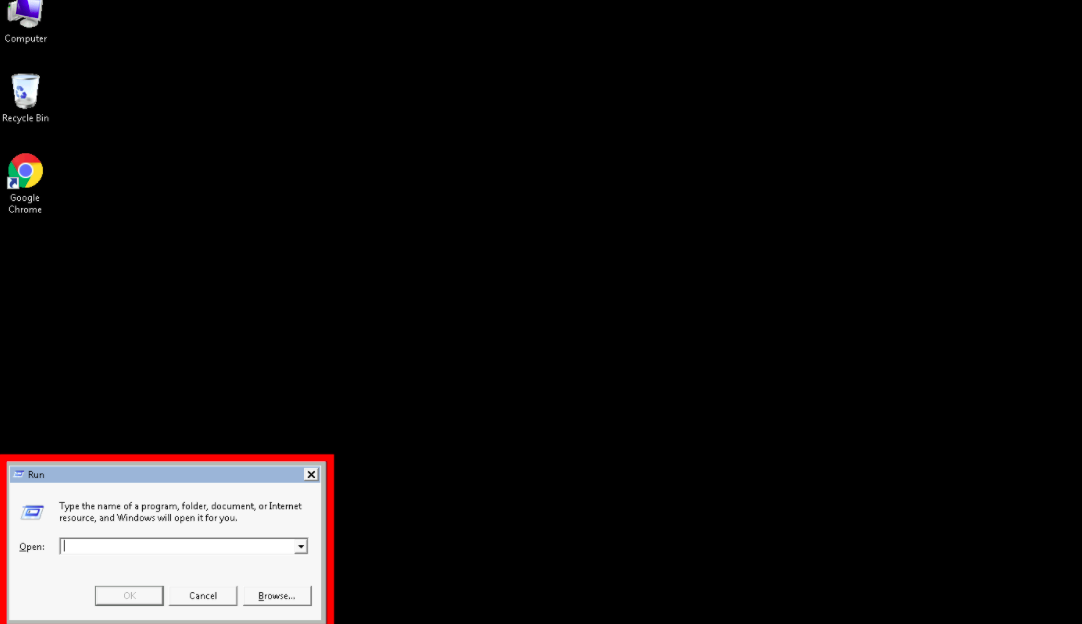
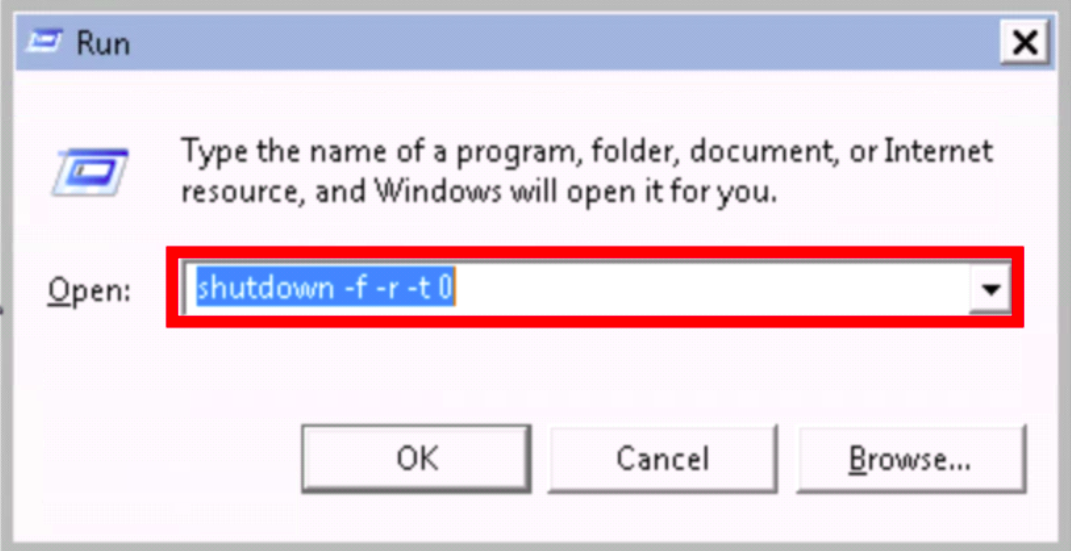
First, please open a Run prompt in the Windows virtual machine you wish to perform a reboot on. To open a Windows Run prompt, you can use the keyboard combination Win+R (or Ctrl+Esc+R ).
-
Once you have opened the Windows Run prompt, please type
shutdown -f -r -t 0and press Enter. This will reboot the machine.Warning
If doing this from a Windows laptop/PC, please confirm that the Run pop-up is not your own Windows Run window, as this will cause your local/physical computer to reboot.
-
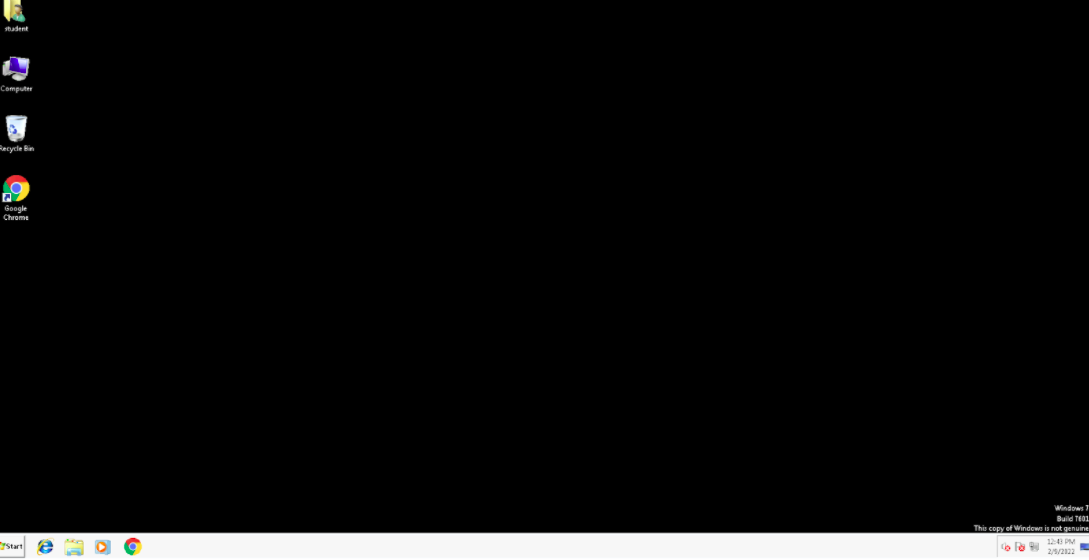
Next, you will receive a notification saying that your browser is attempting to reconnect to the virtual machine. Please wait while your machine reboots until your connection is re-established.
-
After your virtual machine has established a connection, you will be placed back into your rebooted exercise environment.
How To Perform an Exercise Environment Soft Restart
The easiest way to restart an exercise environment is by using the VM control buttons in the Cyber Range exercise area to power off/on the environment completely.
Restart Button
-
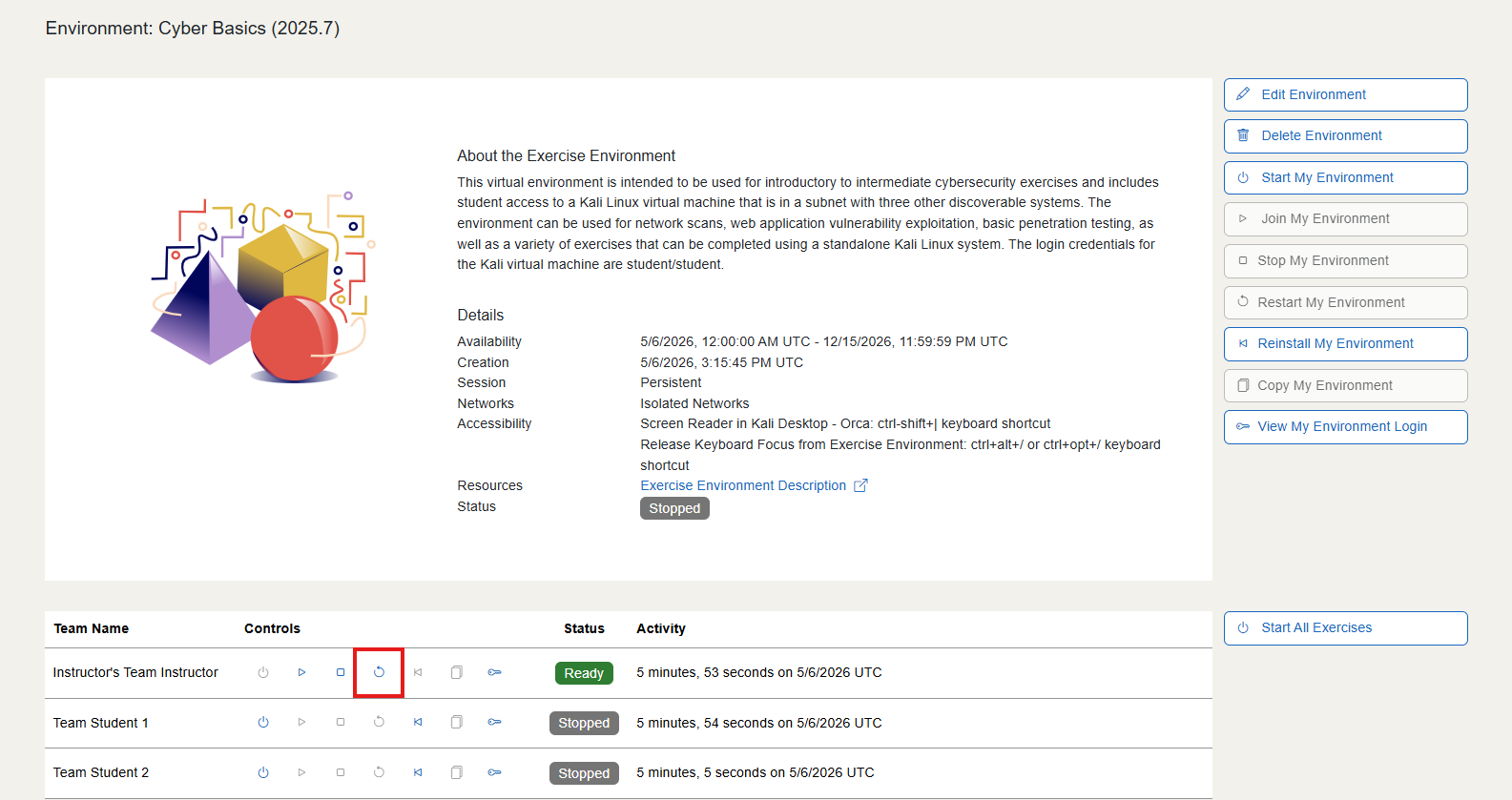
To restart your active exercise environment, you can first try clicking the Restart button. This will power off the VM and then power it back on automatically.
Manual Restart
If you're still experiencing issues, you can also try manually restarting the environment.
-
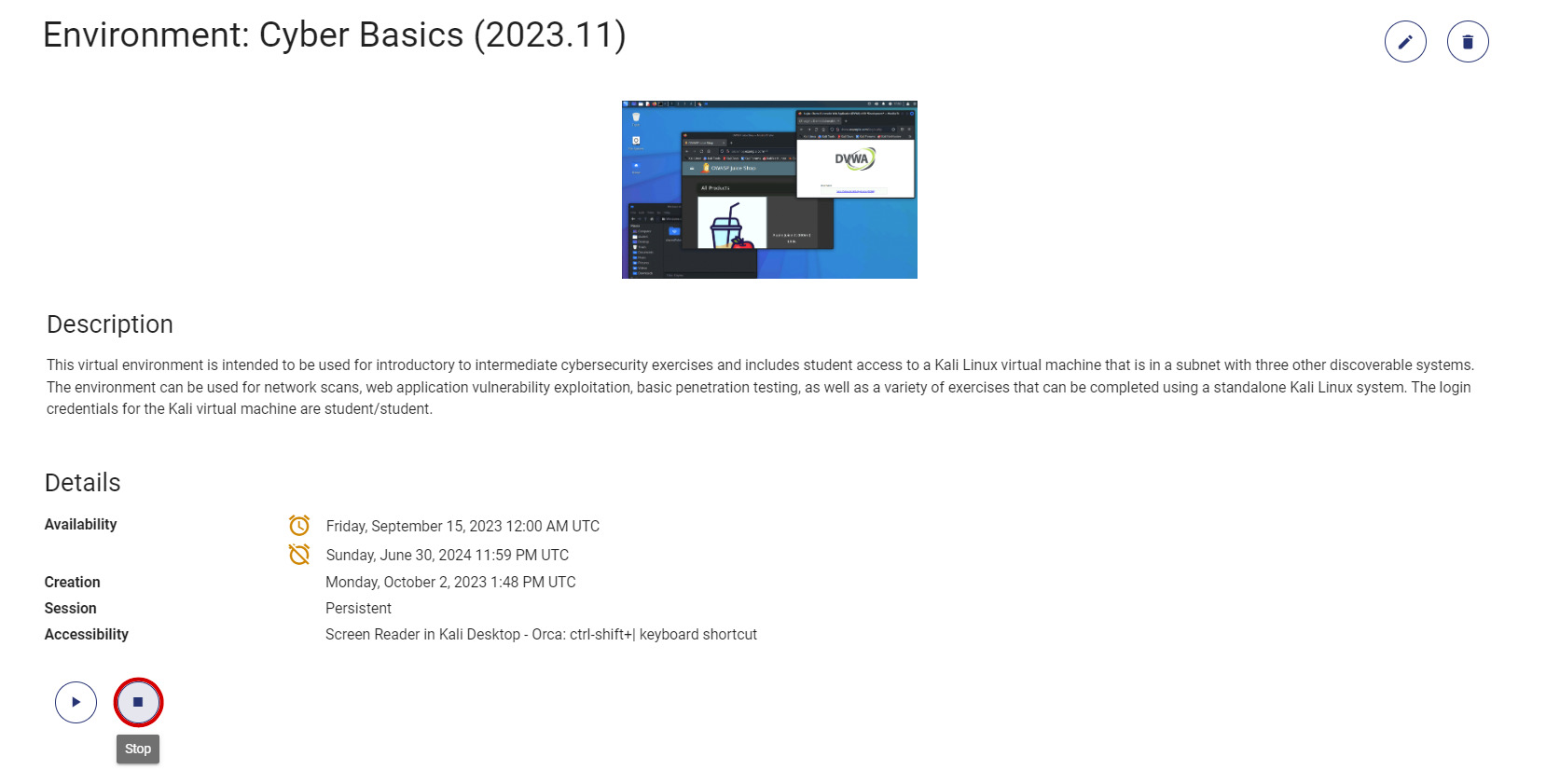
First, click the Stop button located to the right of the Start button.
-
Next, wait a few moments while the VM is powered off.
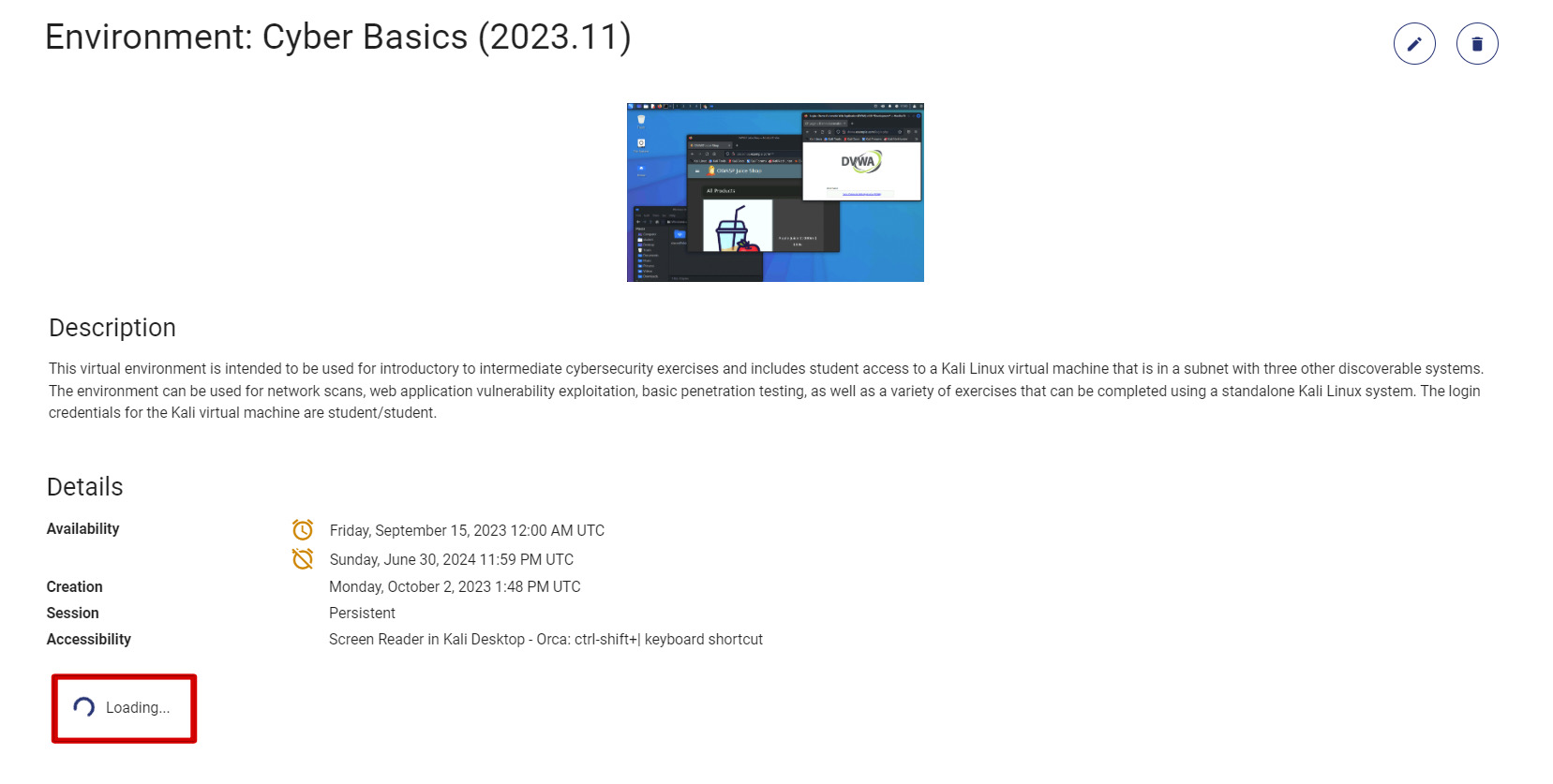
-
Once the virtual machine has been completely powered off, you can click the Start button.
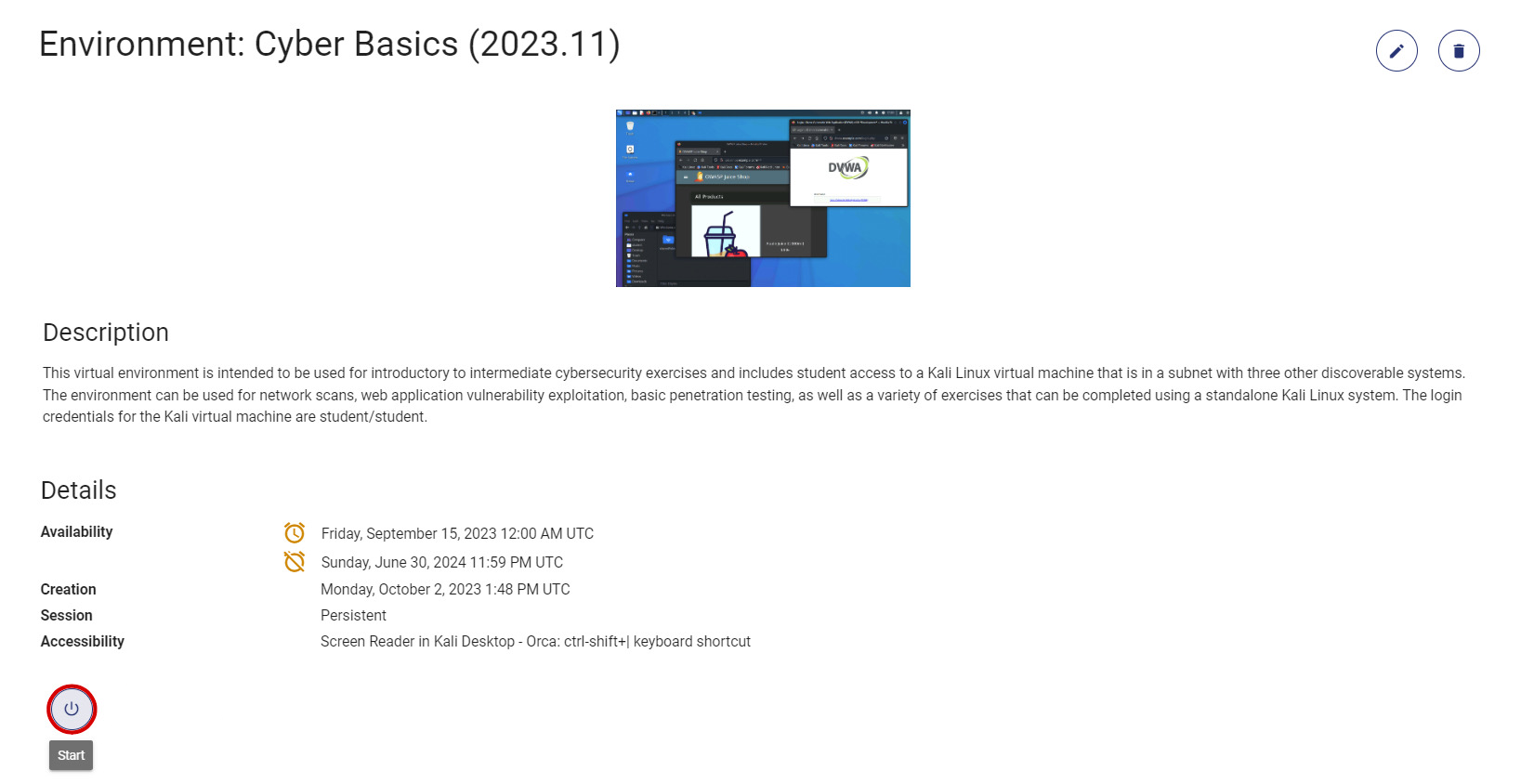
-
Once you have clicked the Start button, the VM will power back on, and you will have successfully restarted the exercise environment.
How To Reinstall an Exercise Environment
Tip
Only Instructors and TAs can perform exercise environment reinstalls by default. If you are a student and your instructor does not have student reinstall enabled, please reach out to them for further assistance.
While operating within an exercise environment, it may be desired or become necessary to reinstall the environment. The appearance of a red alert stating "Error" indicates that the environment has become broken or unusable and needs a reinstall before the user can access it. This issue is often caused by commands that corrupt and crash the environment or remove essential components of our exercise environments. An instructor must reinstall the environment to its stock state for the user to access their exercise environment again.
If you would like to learn about how to avoid broken exercise environments, please visit our Tips to Avoid Broken Exercise Environments article.
Warning
Please keep in mind that reinstalling an exercise environment cannot be undone. Once you reinstall an exercise environment, all data on the exercise environment will be lost. Please proceed with caution.
To reinstall an exercise environment, you must first ensure that it has been completely powered off. The Reinstall button will not be visible if the exercise environment is still powered on.
-
Once the exercise environment has been completely powered off, the Reinstall button will become visible. Please click on the Reinstall button.
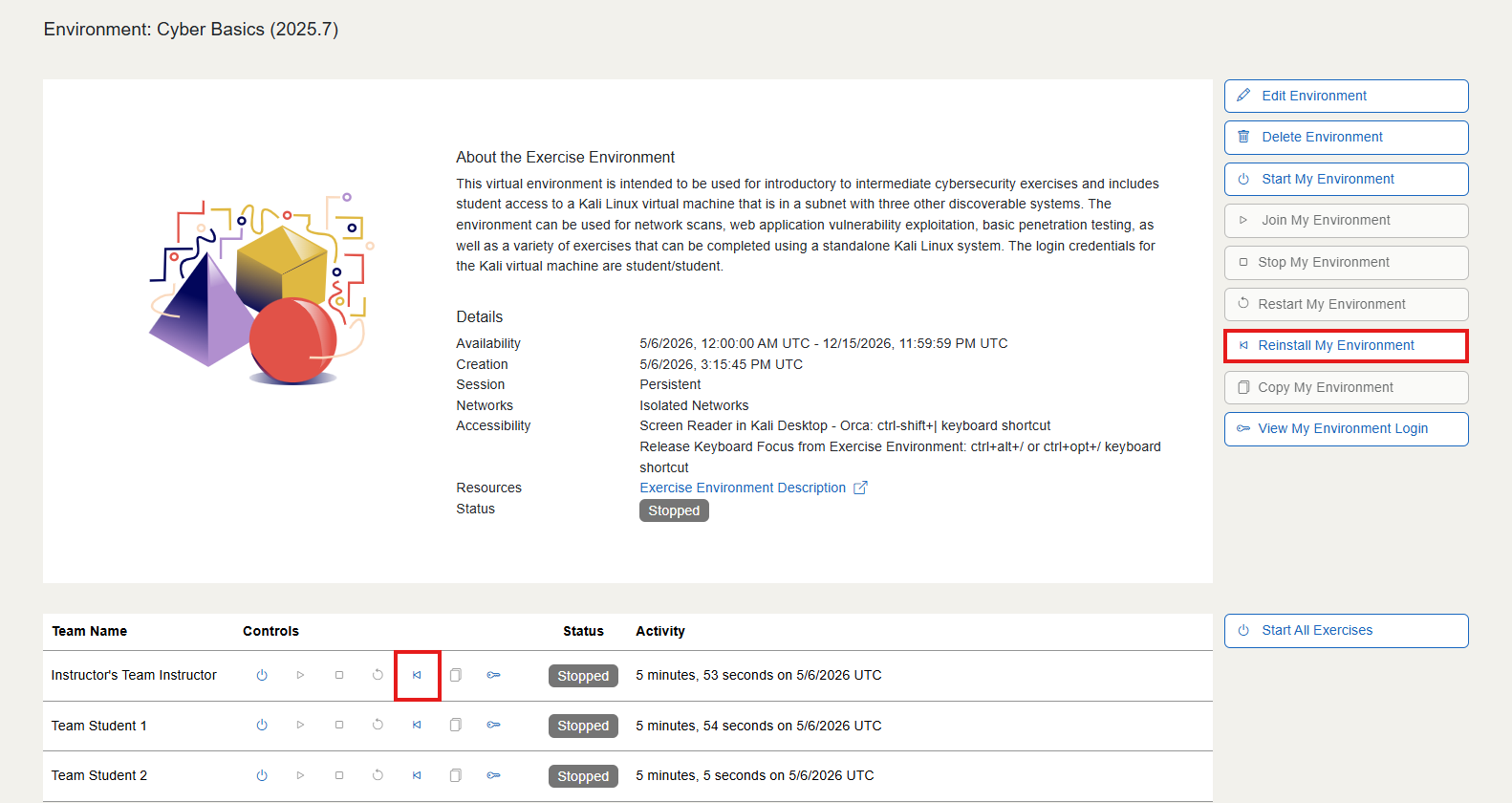
-
You will receive a pop-up message asking you to confirm the exercise environment reinstall. If you are certain that you would like to proceed with reinstalling the environment, please click Confirm.
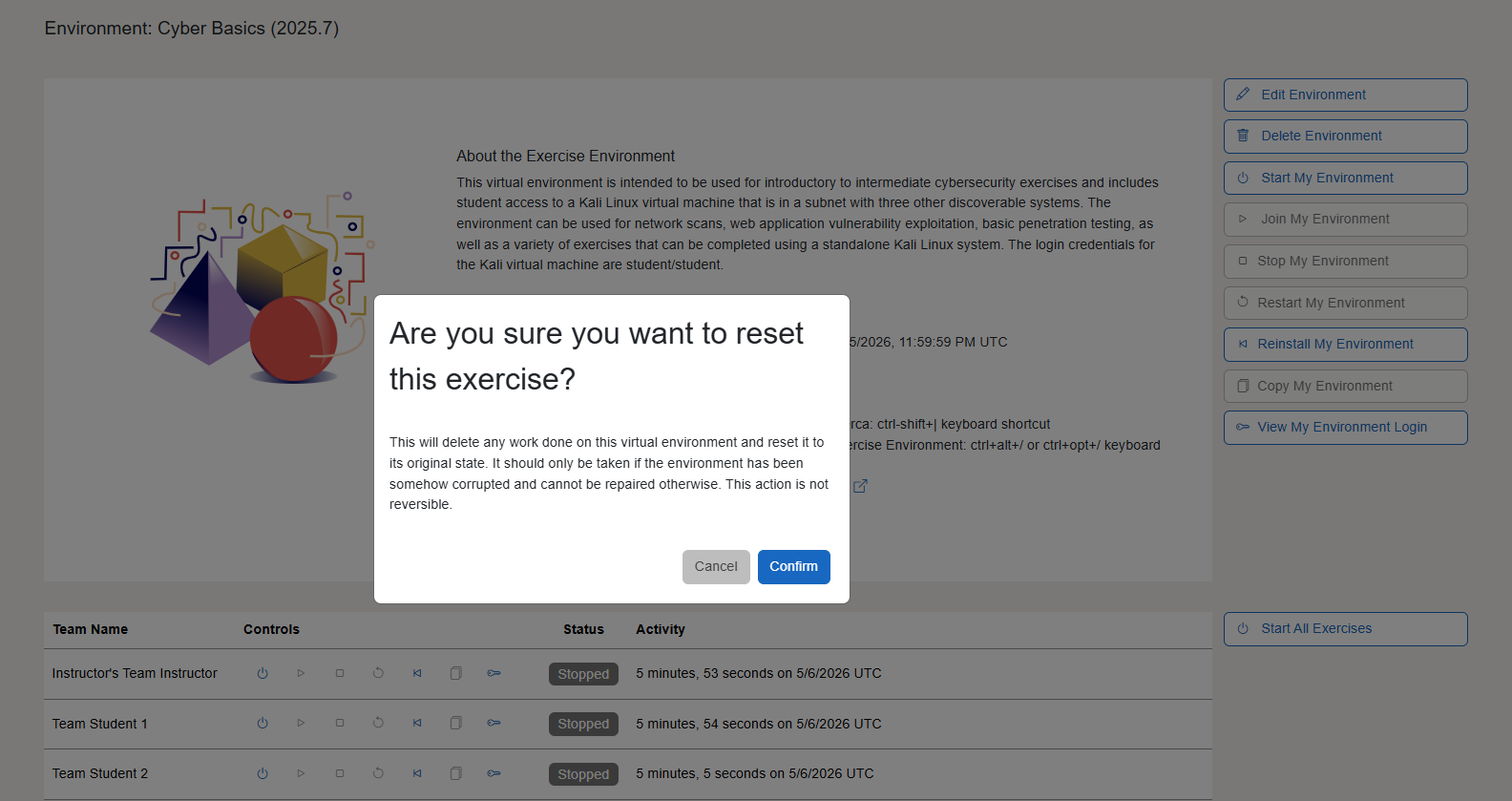
-
Once you have successfully confirmed the exercise environment reinstall, the user of the environment will need to wait a few minutes while the environment is rebuilt.
-
After a few minutes, the user of the environment can power on the virtual machine and access their new exercise environment.
Can a Student Reinstall Their Exercise Environment?
Warning
Students should be aware that a reinstall cannot be undone. All data in their exercise environment will be lost.
When the option to allow students to reinstall their exercise environments is enabled, students can reinstall their environments on their own by clicking the Reinstall My Environment button on the exercise environment page.
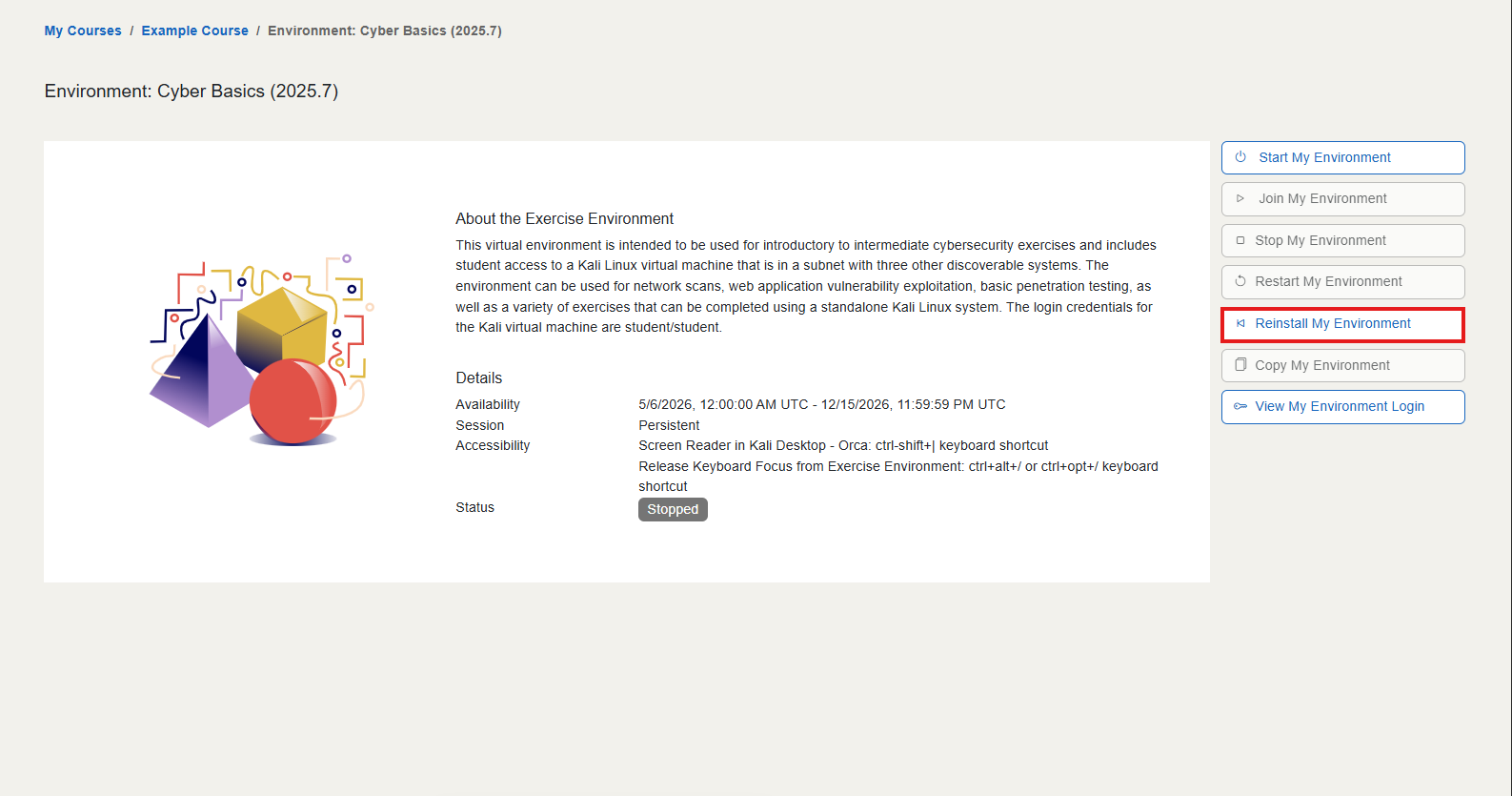 View from a student's perspective
Note
This option must be enabled by the instructor of the course.
How To Enable Student Reinstall
By default, students cannot reinstall their environments themselves. However, instructors do have the option to allow students to reinstall their own exercise environments without instructor or TA assistance.
Enabling When Creating an Exercise Environment
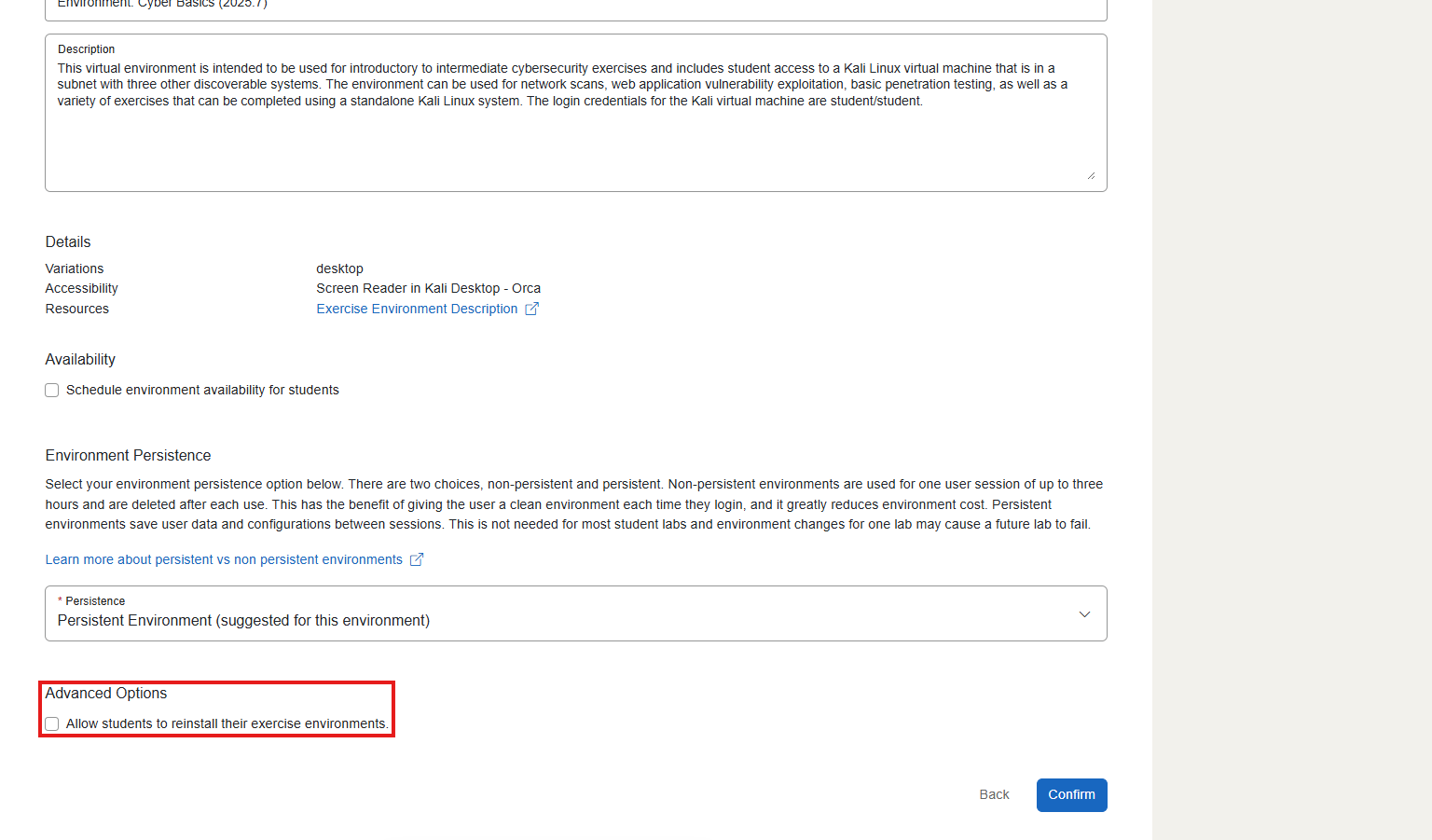
During environment creation, you can enable the option to allow students to reinstall their exercise environments.
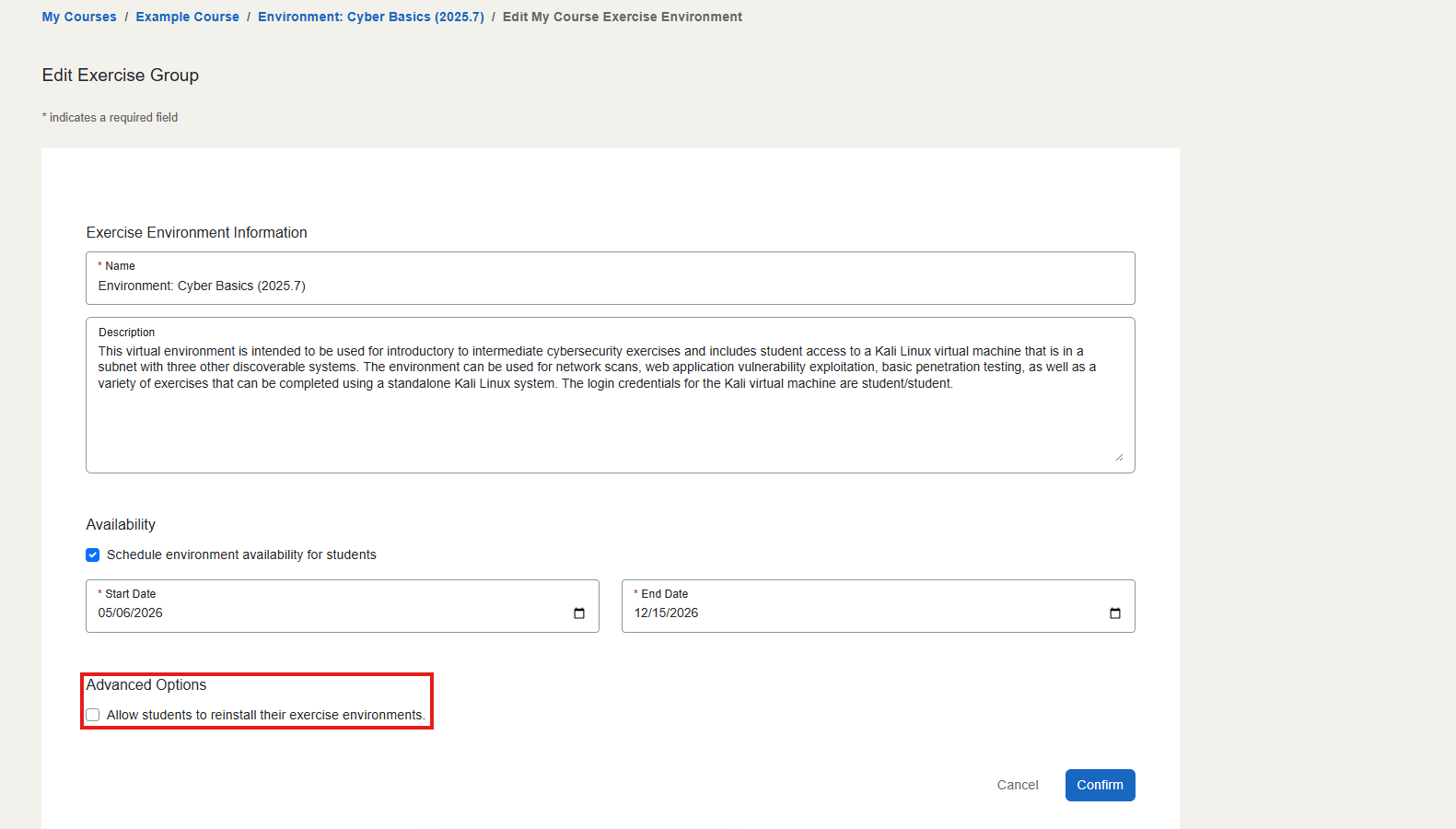
Enable When Editing an Exercise Environment
While editing an environment, you can enable the option to allow students to reinstall their exercise environments.
Have a Question? Contact Support
Important
Students, please reach out to your instructor who can submit a ticket to our Support Team on your behalf.
We're here to help you. If you still have questions after reviewing the information above, please feel free to submit a ticket with our Support Team and we'll get back to you as soon as possible.
Thank You for Your Feedback!