Exercise Environment Search Feature
Abstract
When adding exercise environments to your course, you can search for a specific exercise environment that meets your course's needs. This article will guide you through the process of utilizing the search bar feature when browsing exercise environments.
Using the Search Bar
-
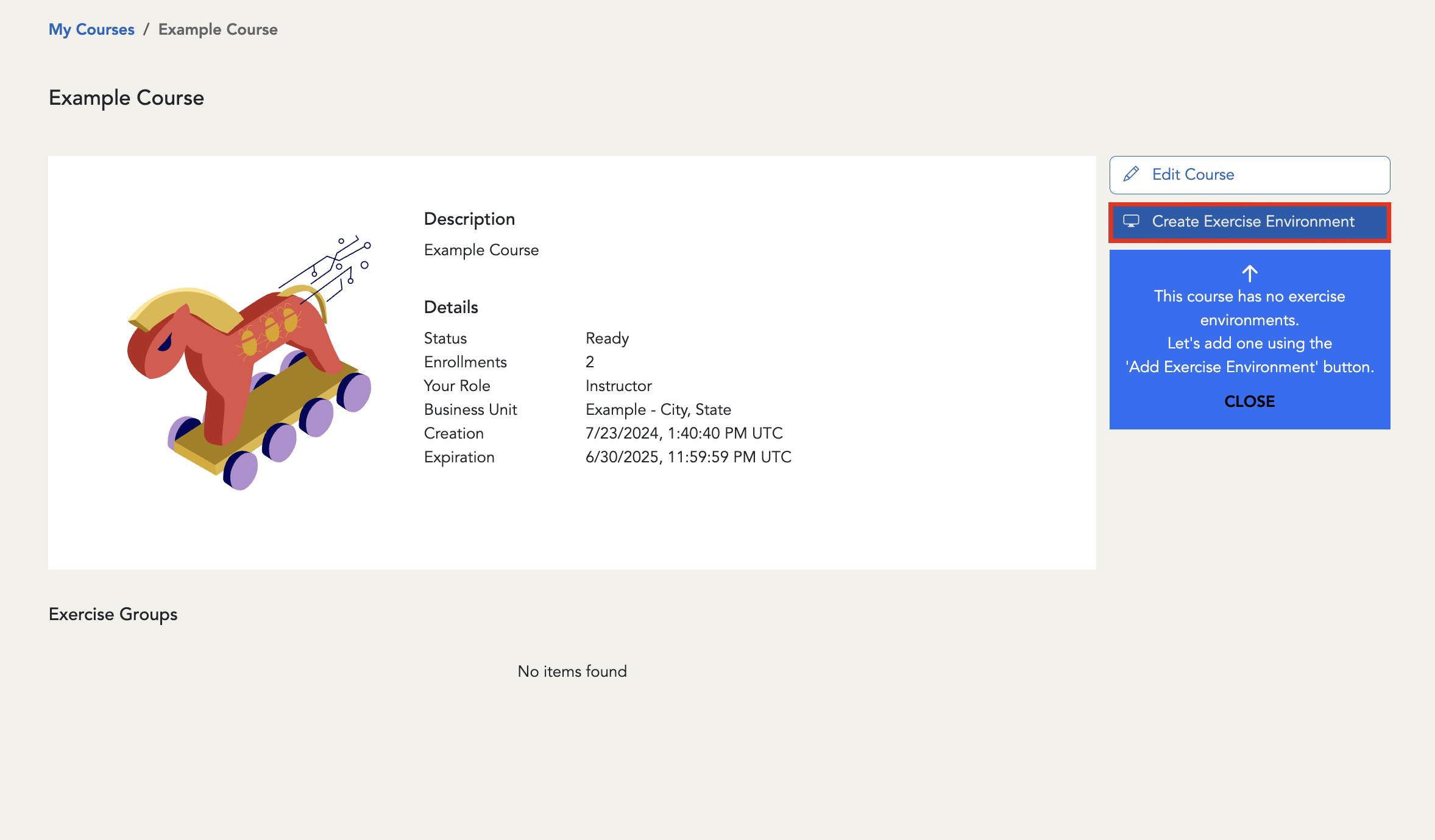
Once logged in to the Virginia Cyber Range, navigate to your course and select the Create an Exercise Environment button.
-
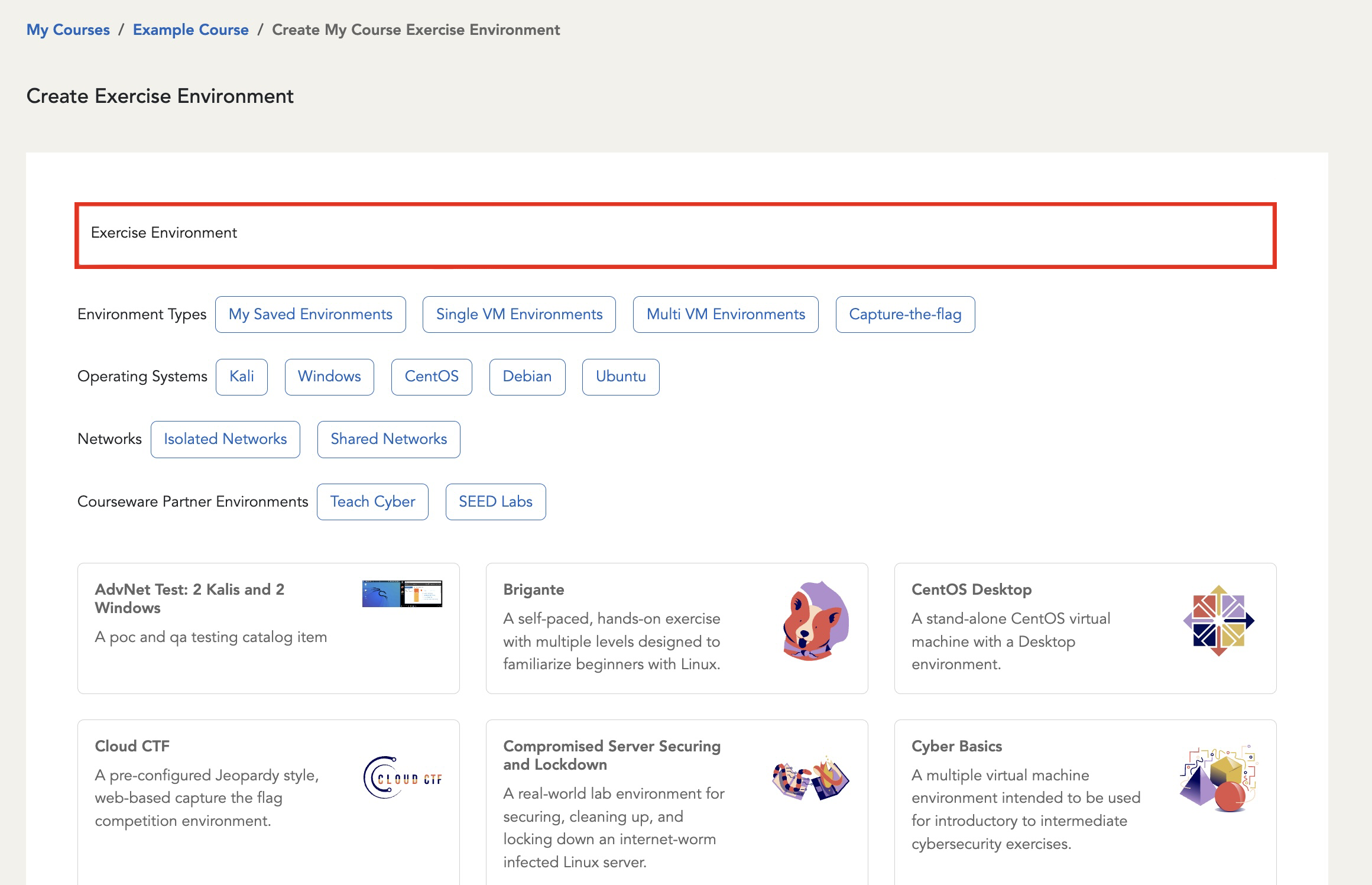
On the Create Exercise Environment page, you can scroll through available environments or utilize the filters to help narrow down your search. The search bar is located on the top of the page, above the filters.
-
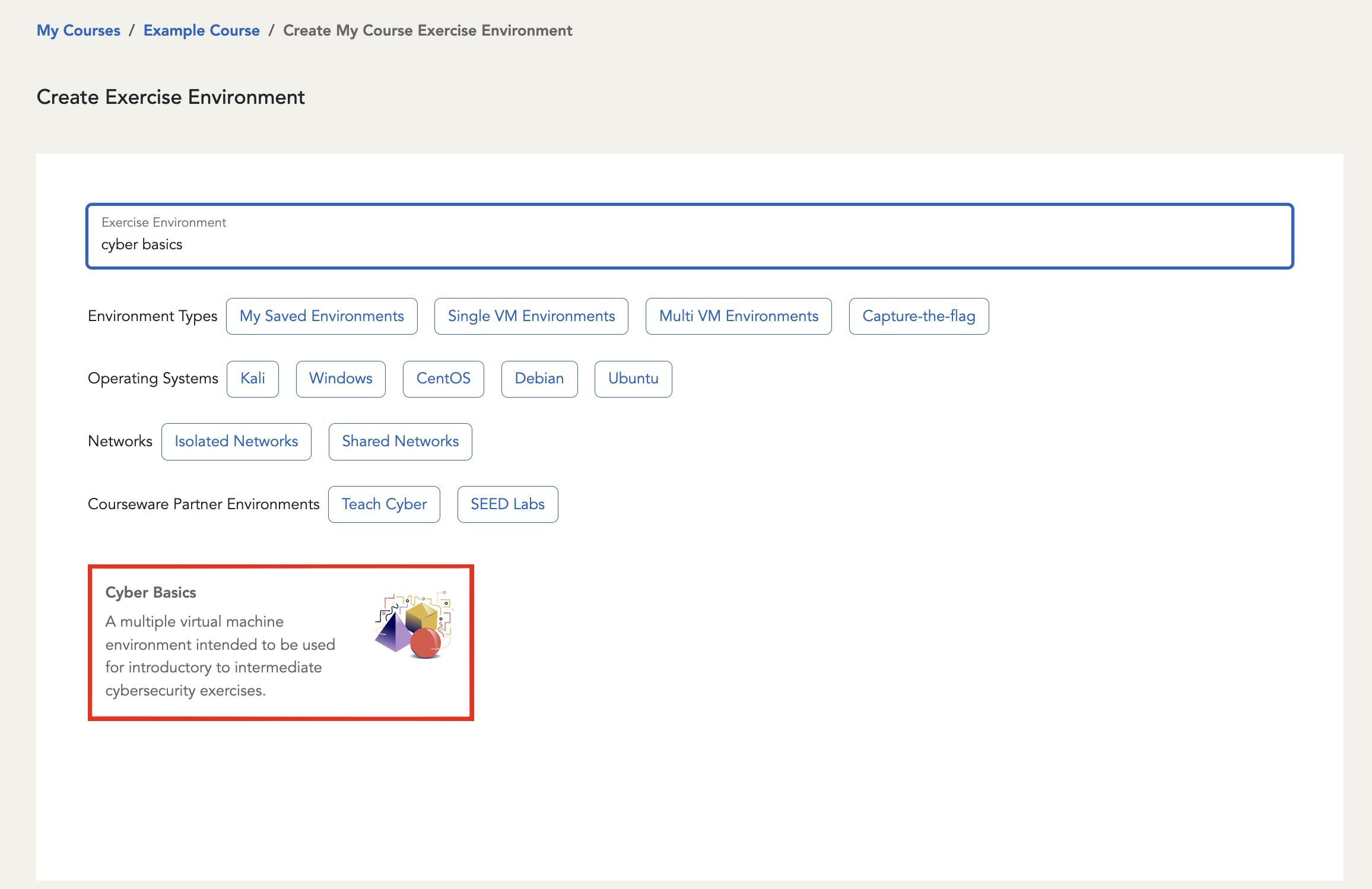
You can use the search bar to find a specific exercise environment. Type keywords for the environment you need and all matching results will populate underneath the search bar.
-
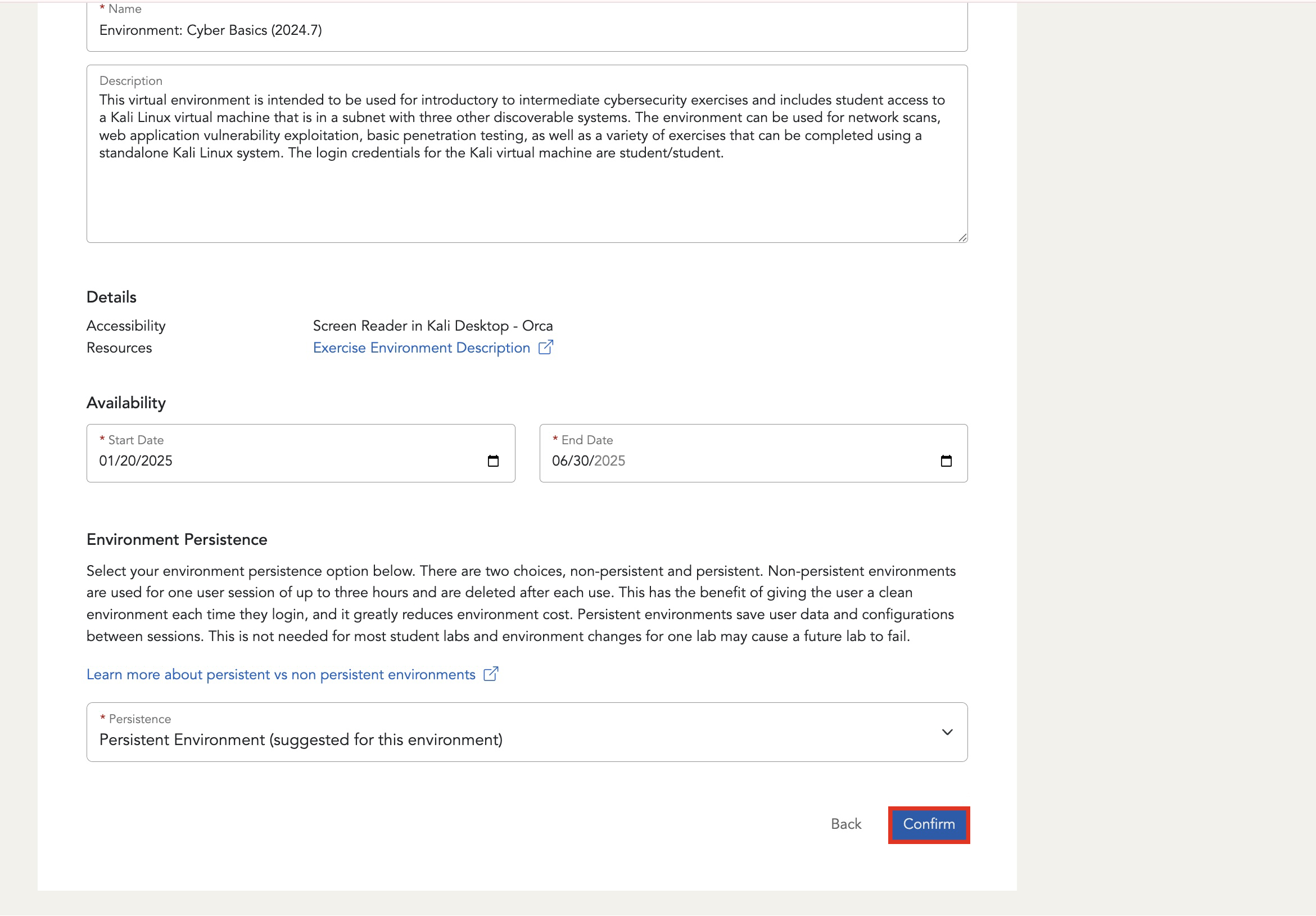
Select the environment you are searching for and make any necessary edits to the environment information. Then, click the Confirm button to add the environment to your course.
Have a Question? Contact Support
Important
Students, please reach out to your instructor who can submit a ticket to our Support Team on your behalf.
We're here to help you. If you still have questions after reviewing the information above, please feel free to submit a ticket with our Support Team and we'll get back to you as soon as possible.
Thank You for Your Feedback!