How to Share a Copied Environment
Note
Sharing a copied environment allows increased collaboration between instructors and a wider variety of ways to make content for courses. To first copy an environment, please visit the article titled Introduction to Customizing and Copying Exercise Environments. If you are looking for more information about accepting a shared environment, please visit our article titled How to Accept a Shared Environment.
Sharing a Copied Environment
-
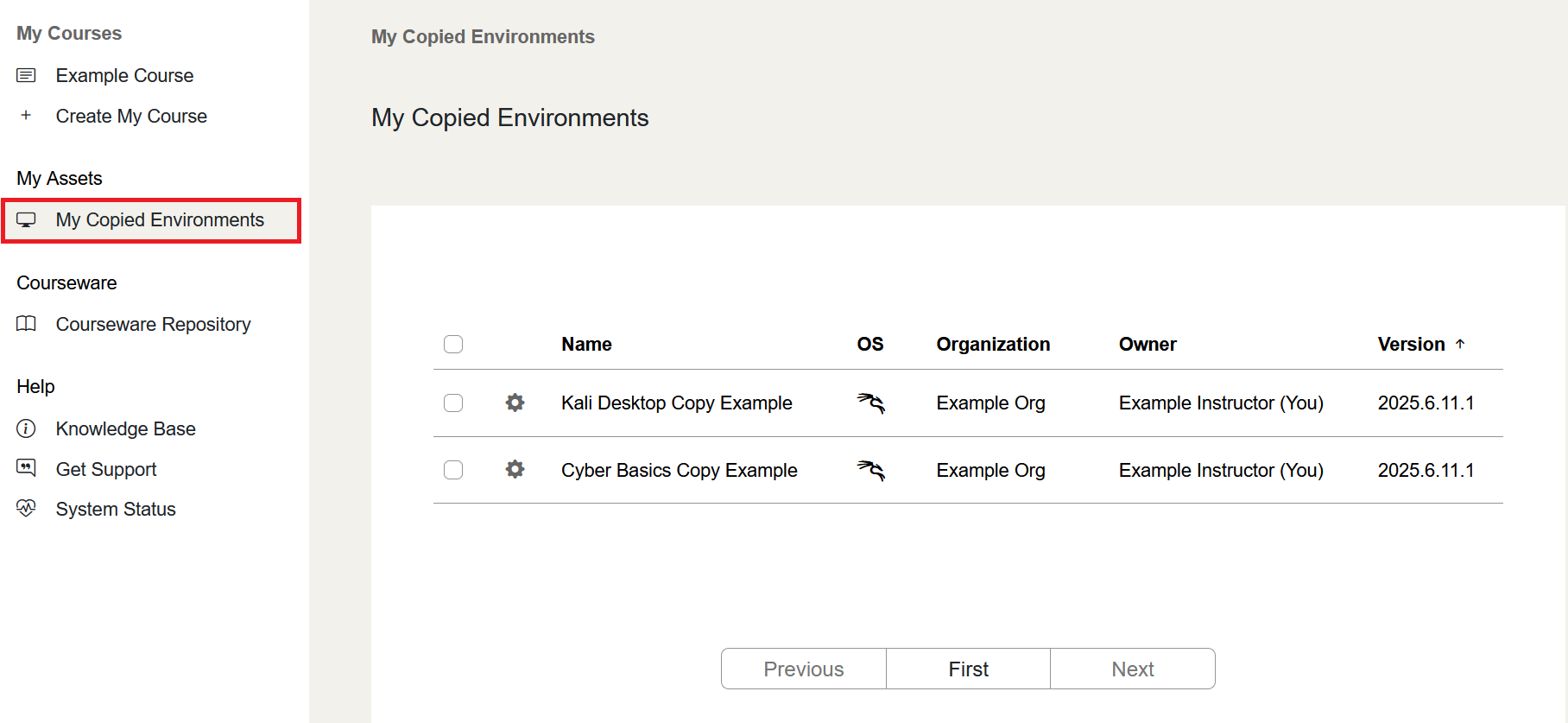
Navigate to the My Copied Environments page, where you will find a list of your copied environments
-
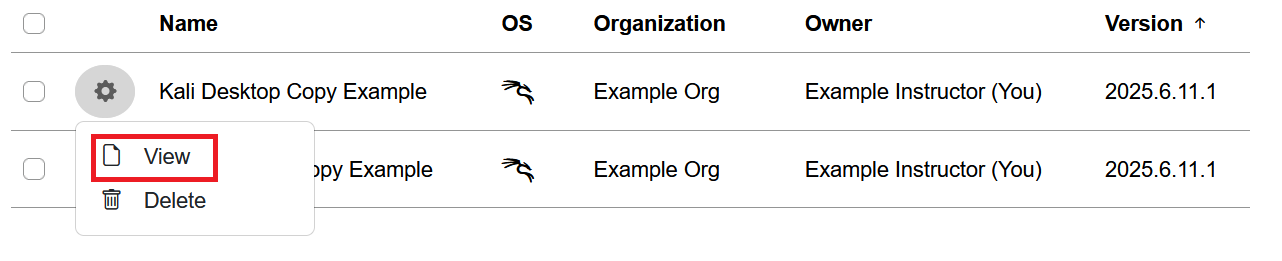
Click on the gear icon to open the action menu and select View to view details about the copied environment
-
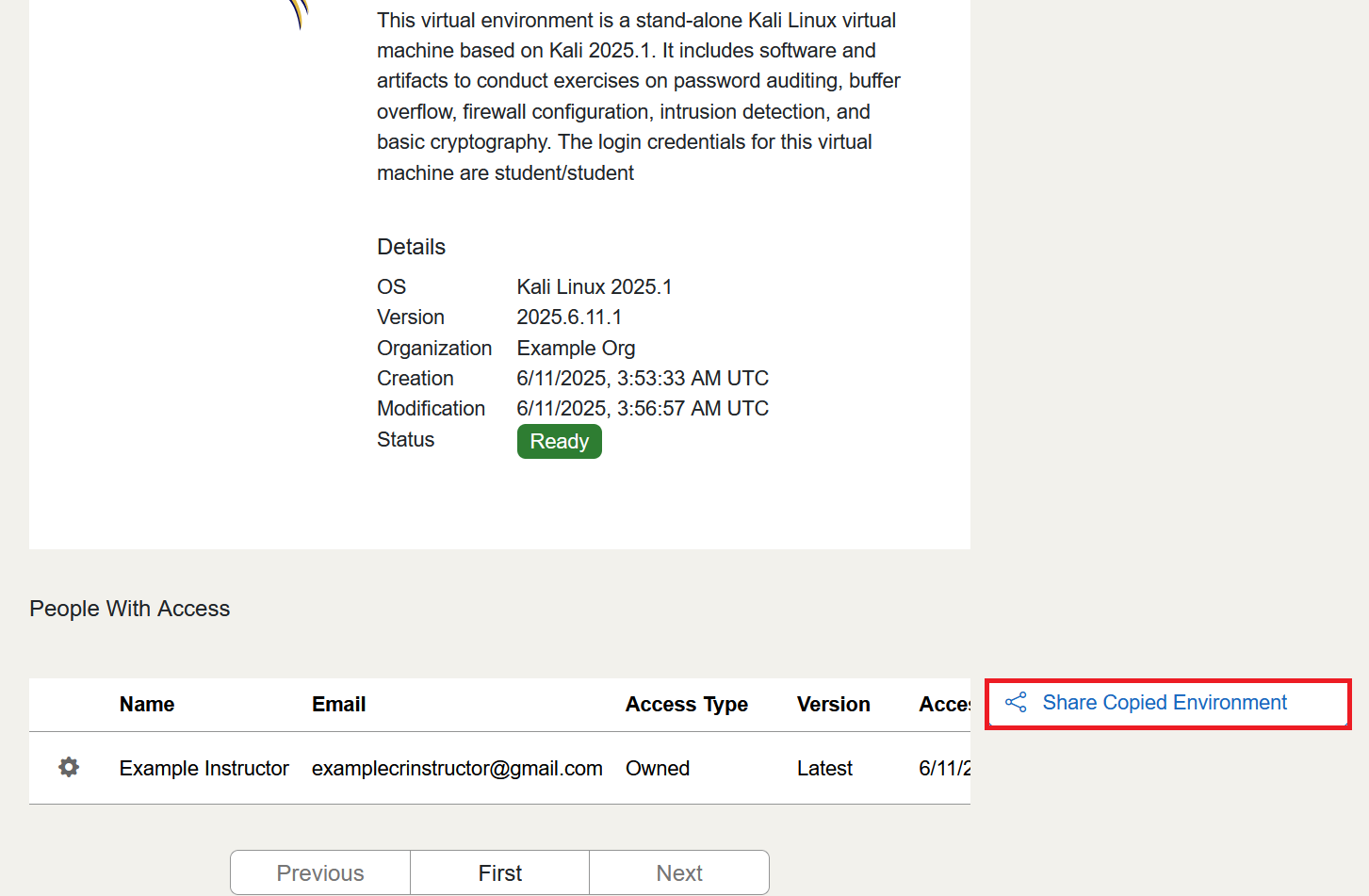
Click on the Share Copied Environment button
-
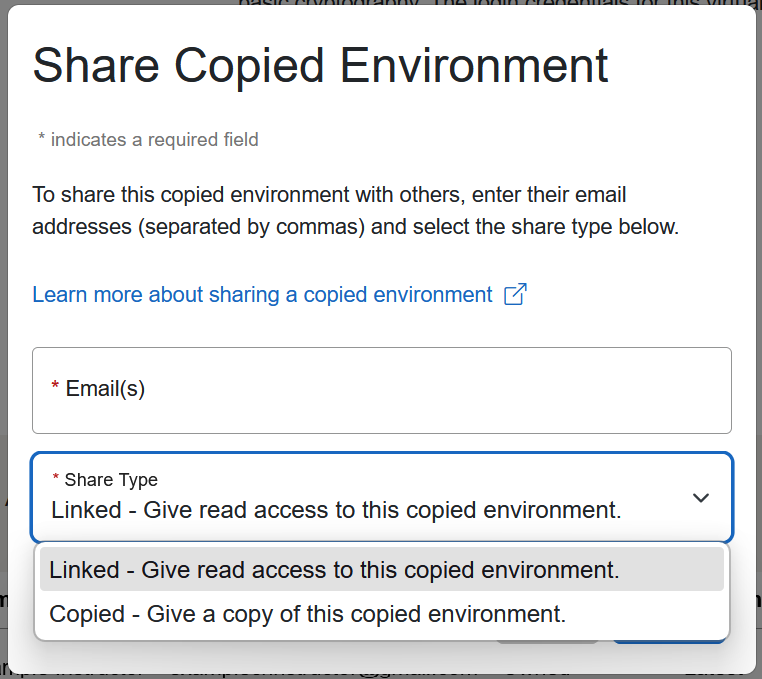
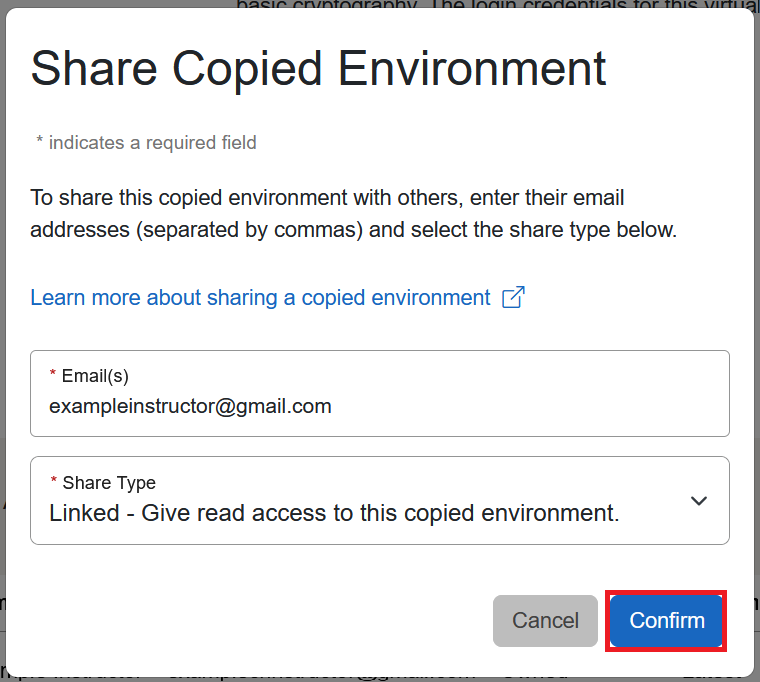
In the pop-up window, enter the email of the instructor you wish to share the environment with, and then select your Share Type (Linked and Copied) from the drop-down menu
-
Click on the Confirm button, and an email will be sent to the recipient instructor for them to accept the shared environment
Sharing Methods
When you are looking to share a copied environment with another instructor, you can choose between two types of sharing methods: Linked or Copied.
Linked Sharing
Link sharing a copied environment makes you the sole owner of the environment. Any changes you make to the shared environment are immediately shared with the recipients. Recipients of linked shared environments may make exercise environments with the environment, but cannot make changes to it. You may link share a copied environment only with instructors within the same organization.
Copied Sharing
Copy sharing a copied environment makes the recipients the owners of their own version of your copied environment. Any changes made to the copied environment only affect the version that you own. Recipients of your copy shared environment can make their own changes to their version of the copied environment.
For more information on linked or copied sharing and restrictions, please visit our article titled Copied Environment Management Overview.
Have a Question? Contact Support
We're here to help you. If you still have questions after reviewing the information above, please feel free to submit a ticket with our Support Team and we'll get back to you as soon as possible.
Thank You for Your Feedback!